Microsoft Store app for Windows

Everything you need to get work done.

Clipboard history, secure vault, notes, tasks, doodles and a focus timer — one app on your desktop, synced with Azure DevOps and Google Calendar. Built for people with work to do.

  • Free
  • Microsoft Store app
  • Windows 10 / 11
  • No account needed
Azure sync complete: 9 item(s), 8 parent user stories…
Personal 5Azure 9Done 28

Today· Wed 10 Jun · Synced

22:00 Food pickup

Today

!Party arrangement20:5510/06
1GOAL06/10/202620:5610/06
TASKSend an email to john20:5610/06
TASKPick Up Sandy20:5710/06
TASKFood pickup20:5710/06
Azure sync complete: 9 item(s), 8 parent user stories.

The grand tour

Every feature, straight off the desk.

No mockups below — these are real screenshots of Rei Note doing a real day's work.

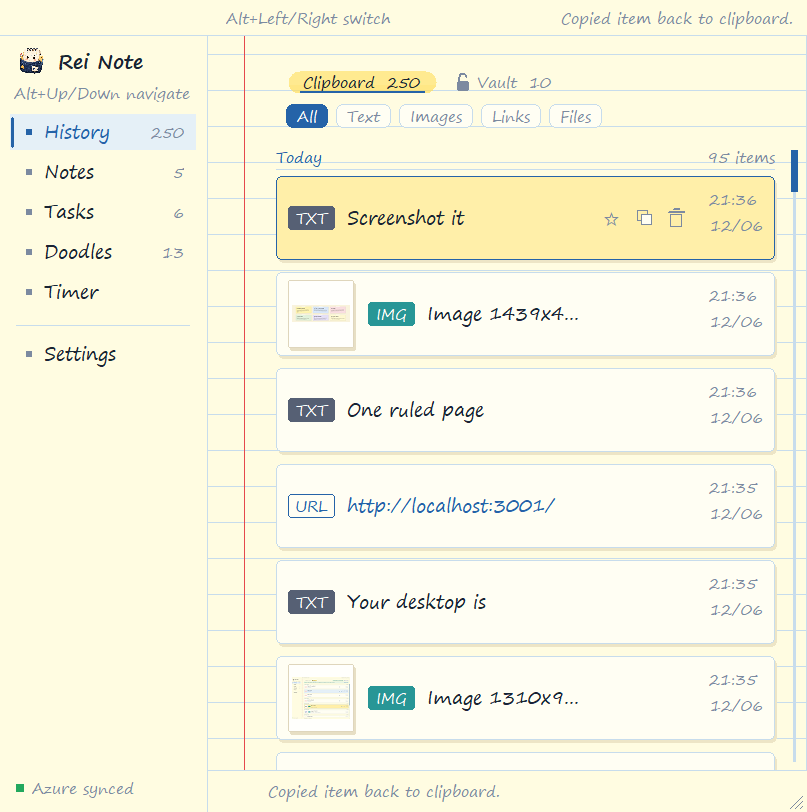
Rei Note clipboard history showing today's copied text, images and links with filter tabs

Clipboard history

Every copy lands on the page.

Ctrl+C anywhere and it's already here — text, links, images, files. 250 clips deep, grouped by day, one click from being pasted again.

  • Filter by Text, Images, Links or Files
  • Star the keepers, copy anything back instantly
  • Thumbnails for every screenshot you grab
  • Old clips roll off on their own — zero housekeeping
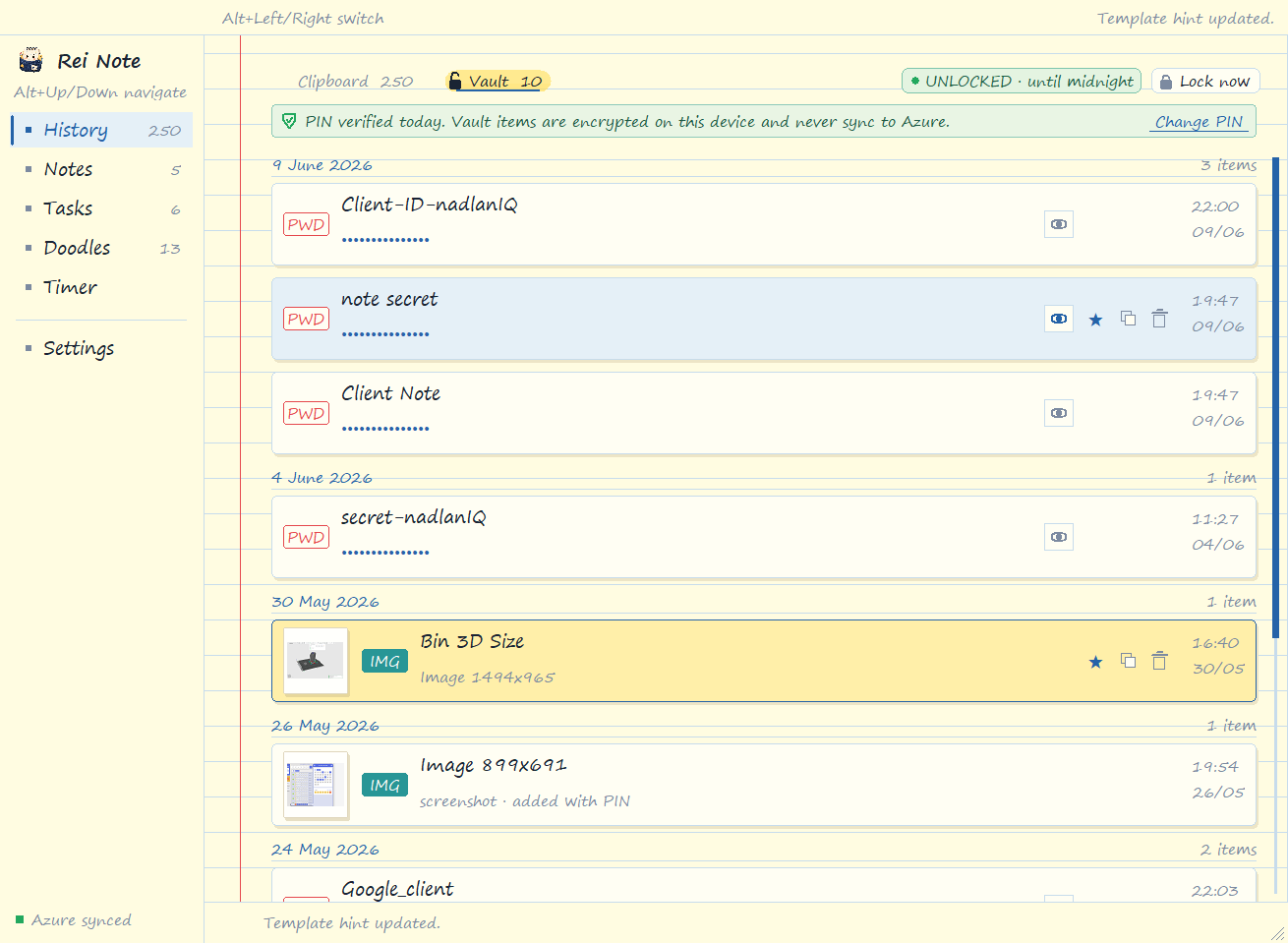
Rei Note Vault with masked password entries, an unlocked-until-midnight badge and a Lock now button

The Vault

Secrets live behind a PIN.

Tokens, passwords, client IDs — pin them to the Vault. Items are encrypted on this device and never sync to Azure. One PIN entry a day, lock it the moment you walk away.

  • 4-digit PIN — once a day, or every time, your call
  • Encrypted on this device, never leaves it
  • Passwords stay masked until you hit the eye
  • “Lock now” for when someone walks by
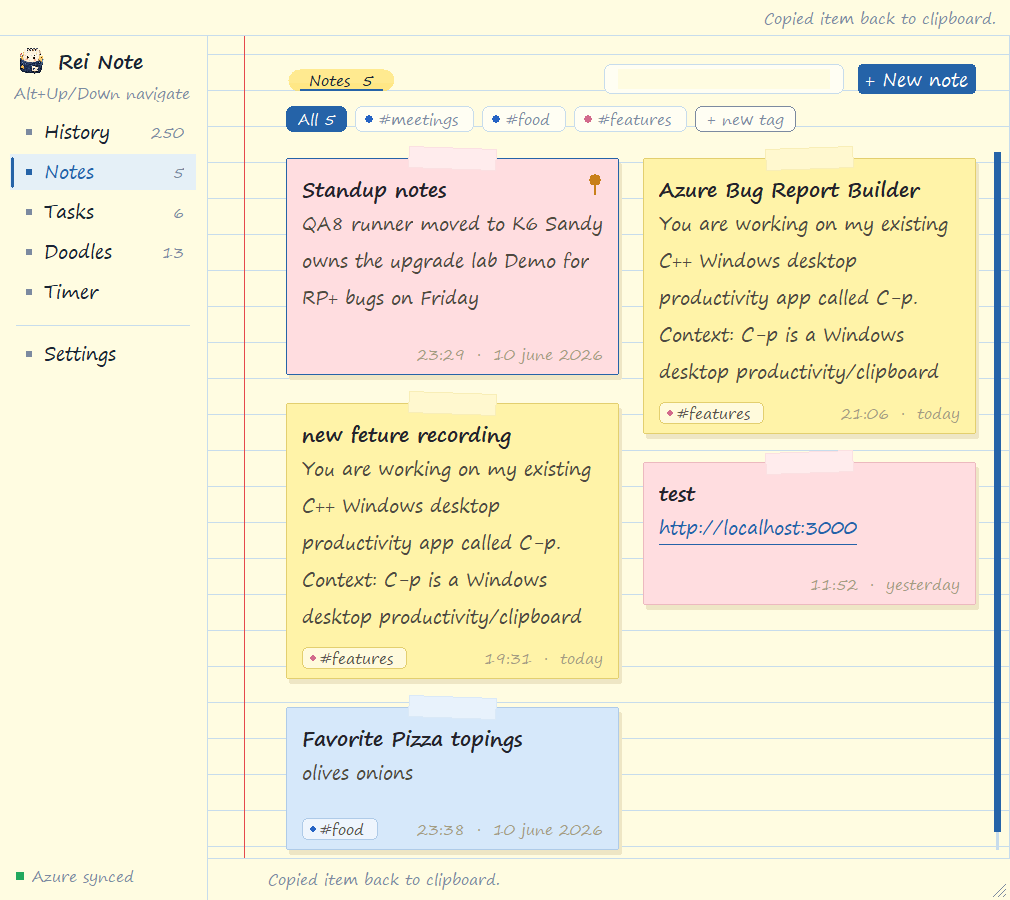
Rei Note notes board with colored sticky notes, tag filters and a new-note button

Notes

Sticky notes with a memory.

Quick notes that look like the real thing — taped to the page in yellow, pink and blue. Tag them, pin the important one, paste a link and it just works.

  • #tags slice your notes by topic — one click to filter
  • Pin a note so it never wanders off
  • Links are clickable, colors are yours
  • Search box up top finds any note as you type
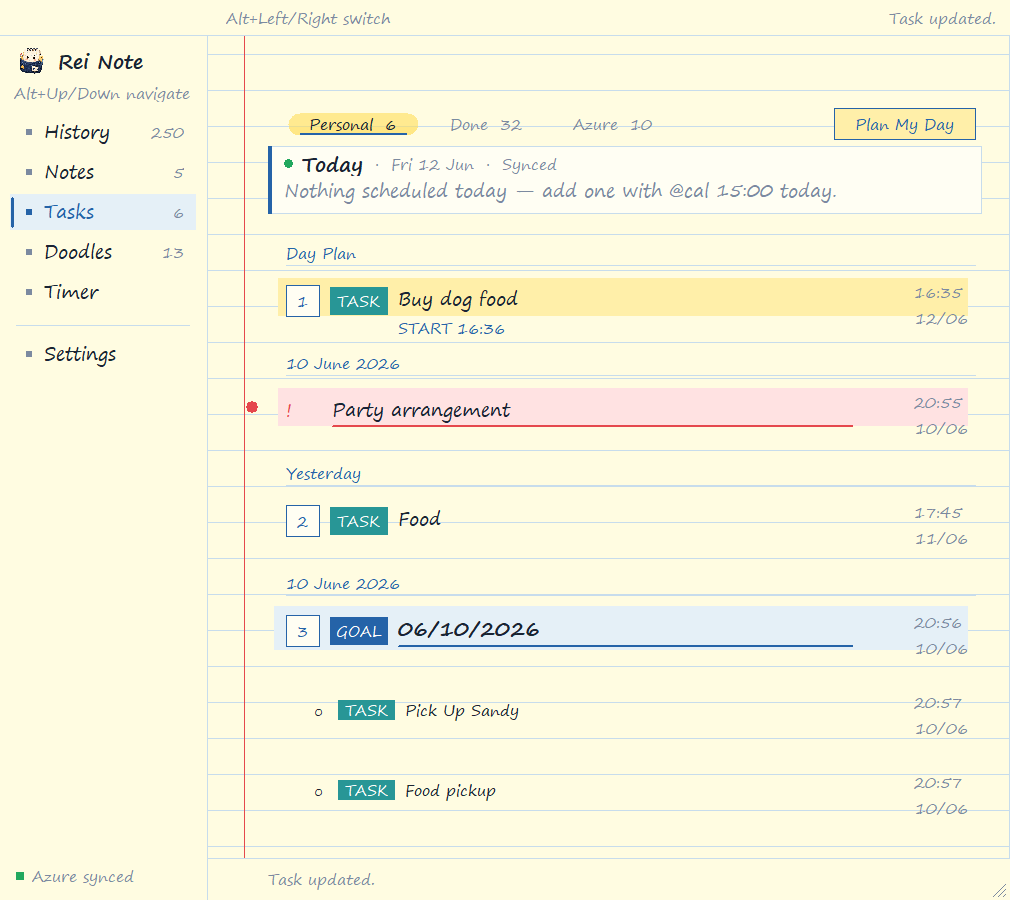
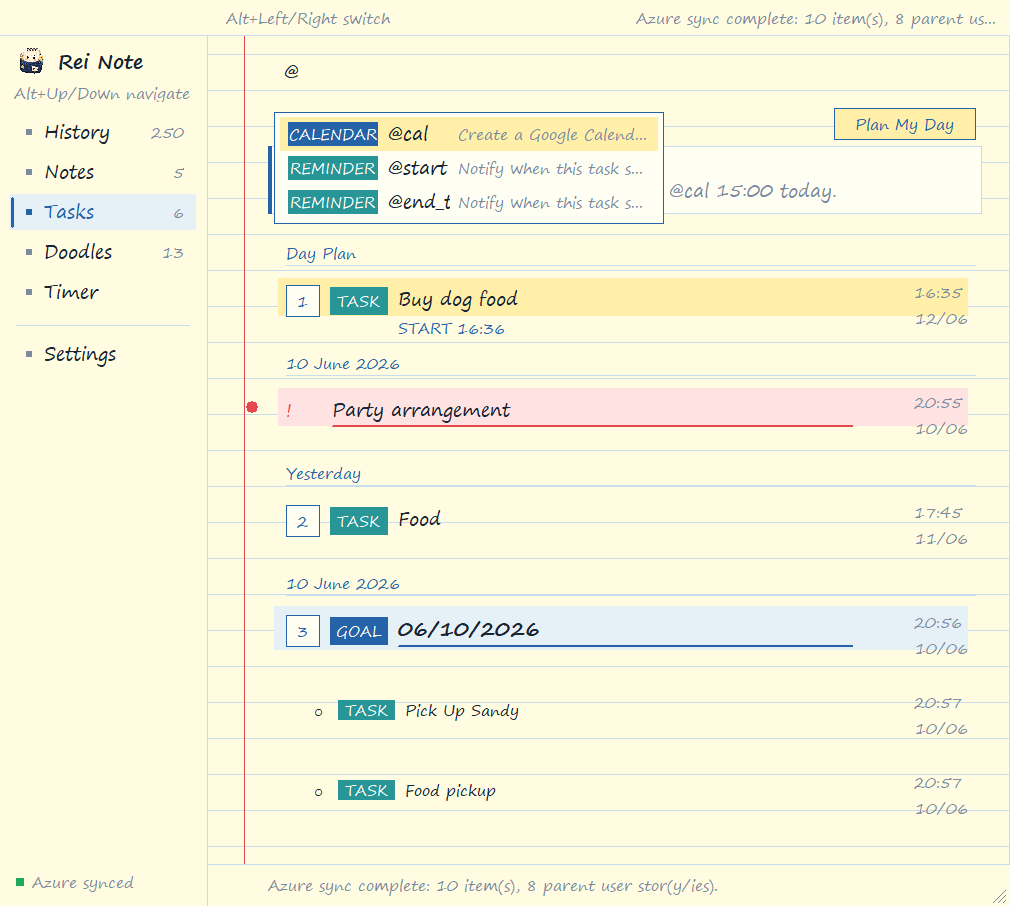
Rei Note tasks page with a day plan, a priority task, goals and a Plan My Day buttonTyping @ in a task opens a menu with @cal for calendar events plus @start and @end_t reminders

Tasks & goals

A todo list that knows your calendar.

Tasks, goals and red-! priorities on ruled paper. Type @ inside any task and the menu opens: @cal books a real Google Calendar event, @start and @end_t set reminders.

  • Personal, Done and Azure boards, one tab apart
  • @cal 15:00 today → a real calendar event
  • @start and @end_t ping you at the right moment
  • Goals group tasks under one deadline
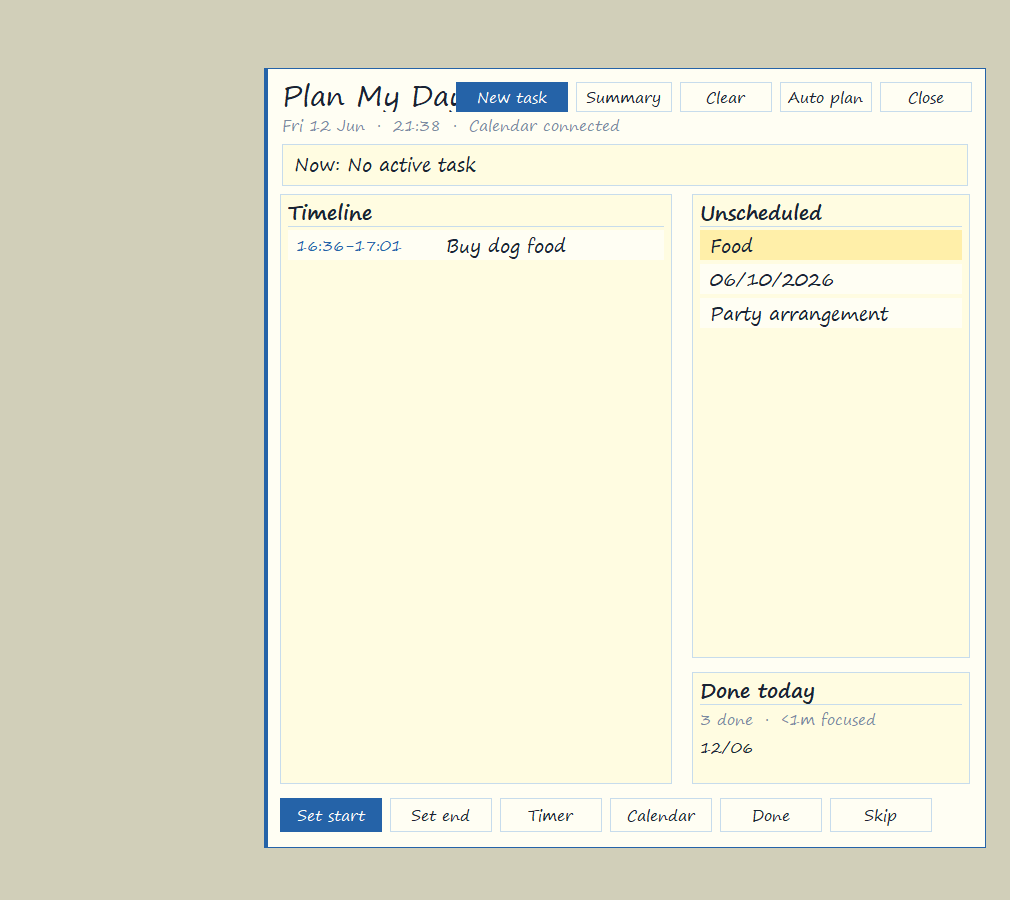
Plan My Day window with a timeline, an unscheduled task list and a done-today summary

Plan My Day

Tetris your day onto a timeline.

One window: today's timeline on the left, everything unscheduled on the right. Hit Auto plan and watch the day arrange itself — then start the timer straight from the plan.

  • Auto plan slots unscheduled tasks for you
  • Set start & end, or push a task to the calendar
  • Jump into a focus timer from any task
  • “Done today” keeps the score
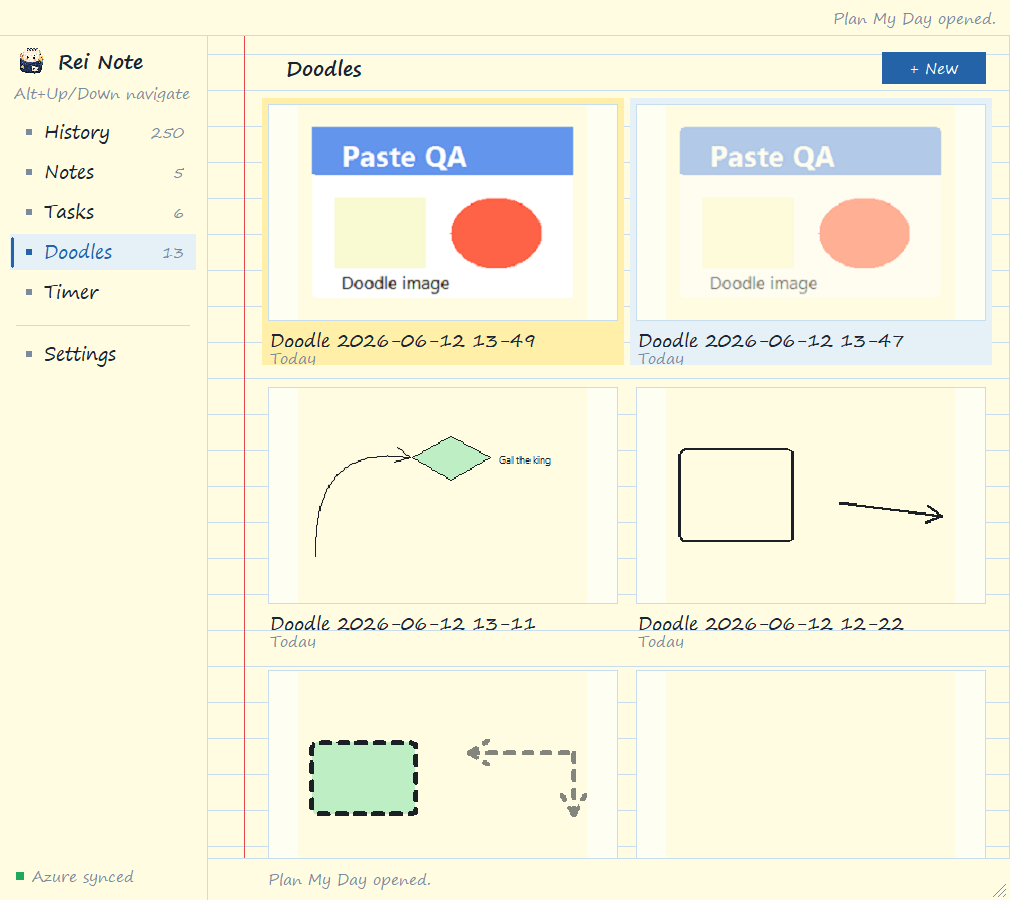
Rei Note doodles gallery with sketched diagrams, arrows and annotated screenshots

Doodles

Draw the thing words can't say.

A scratchpad one click away. Sketch the flow, circle the bug on a pasted screenshot, keep every doodle in a gallery — dated and ready to copy.

  • Pen, shapes, arrows and text
  • Paste any image and draw right on it
  • Every doodle saved to the gallery, named by date
  • Copy a doodle back to the clipboard to share
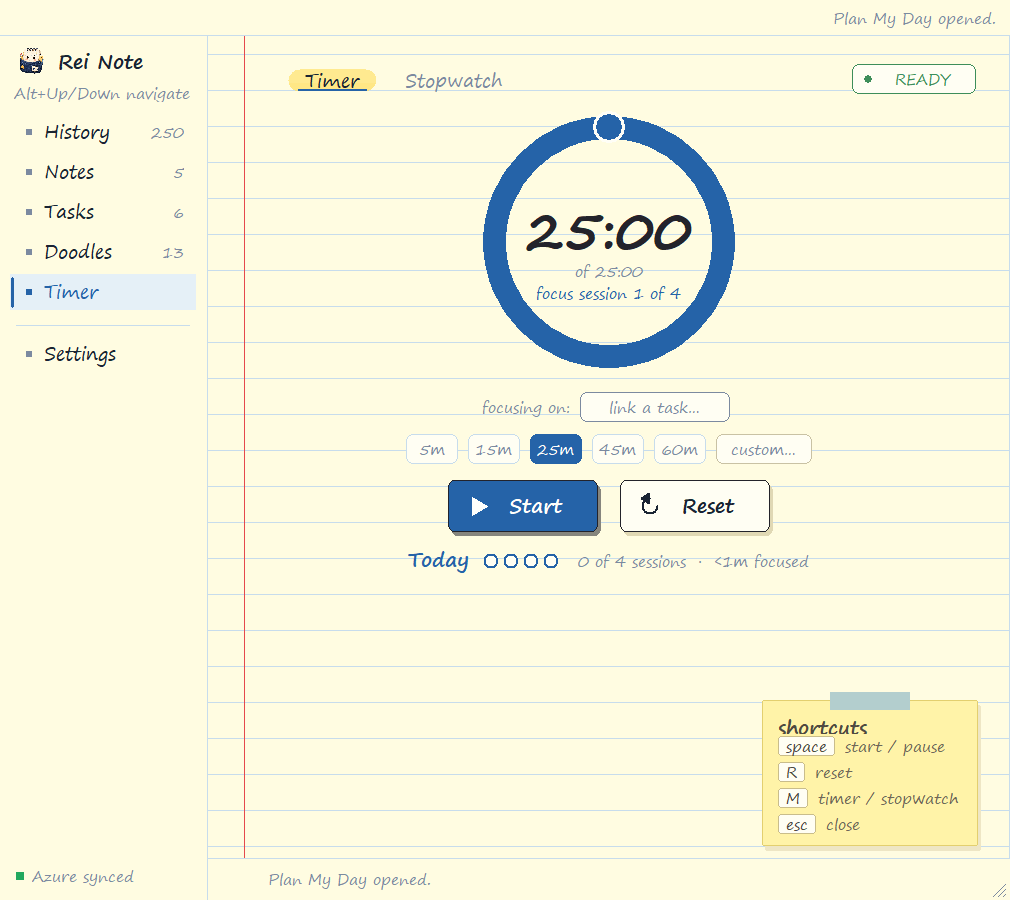
Rei Note focus timer at 25 minutes with session presets, a link-a-task field and keyboard shortcuts

Focus timer

25 minutes of actual focus.

A Pomodoro-style timer with a stopwatch one tab over. Link it to a task, hit space, and the session dots fill up as your day adds up.

  • 5 / 15 / 25 / 45 / 60 minutes — or roll your own
  • Link a task so the time lands somewhere
  • 4-session cycles with focus stats for today
  • Space to start, R to reset, M flips to stopwatch

Capture & mark up

Screenshot it. Blur the secrets. Ship it.

Grab any region of your screen and a full annotation editor opens right on the desk — no second app, no upload, no round-trip.

  • Pen, arrow, box & text to point things out
  • Blur to redact passwords, tokens and faces
  • Crop, undo / redo, any color and size
  • Copy to the clipboard or Save — or both at once
Rei Note – Screenshot

Added.

SelectPenArrowRectTextBlurCropUndoRedo
ColorSizeCopySaveCopy_Save

For the work-work

Your Azure DevOps board, in your handwriting.

Connect your organization, project and team once. Rei Note pulls your user stories and tasks onto the page and keeps them in sync while you work.

  • Pull user stories & tasks from your team's board
  • Move work between New, Active and Closed — inline
  • Counts and sync status always visible on the desk
  • Your Personal Access Token never leaves your machine

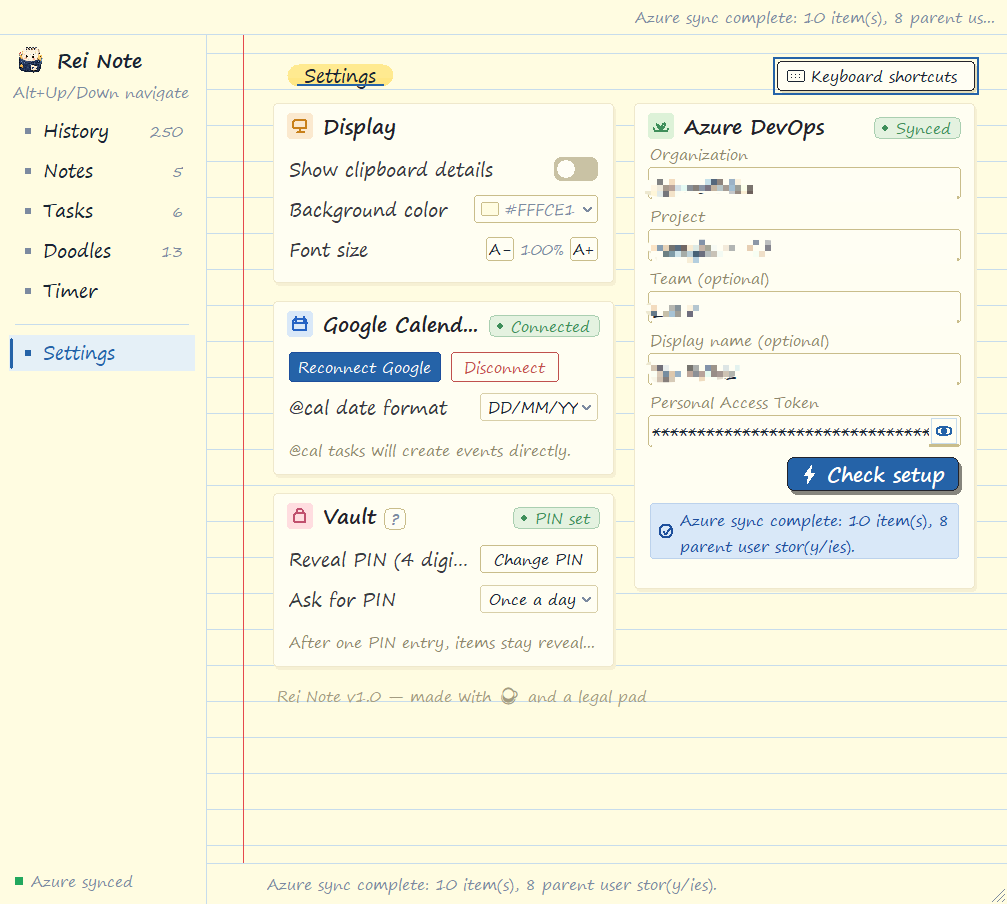
Make it yours

Two minutes of settings, then back to work.

Pick your paper color and font size, connect Google Calendar, set the Vault PIN, paste your Azure DevOps token — done. Everything stays on your machine.

  • Paper color & font size for the whole pad
  • Google Calendar: connect once, @cal forever
  • Vault PIN with once-a-day unlock
  • Azure DevOps token never leaves your machine
Rei Note settings with display options, Google Calendar connection, Vault PIN and Azure DevOps setup

How it flows

From loose thought to checked-off task.

1

Copy anything

Text, links, paths, screenshots — everything lands in History on its own.

2

Keep what matters

Pin keepers to the Vault, turn clips into notes, tasks or doodles.

3

Sync your day

@cal creates real calendar events. Azure tasks flow both ways.

4

Focus & check off

Run a timer on the corner of the desk and close the loop.

Build it with us

Help us build your productivity feature.

Rei Note is built out of real workdays — the Vault, Plan My Day and the @ menu all started as someone's “I wish it could…”. Tell us the tool that would save you ten minutes every day, and we'll put it on the roadmap.

  • Every idea is read by a human — the one who writes the code
  • Leave an email and you'll hear back when it ships
  • No account, no survey — just the idea

One app. Your whole workday.

Free Microsoft Store app for Windows. Clipboard, vault, notes, tasks, doodles, calendar and focus — everything you need to be productive, in one place.

Download from Microsoft Storeor get product updates —